Introduction
If your WordPress website is hacked or infected, learning proper WordPress malware removal is critical. Malware not only damages your website but also affects your SEO rankings and user trust.
According to Google Search Central, hacked websites may be flagged or removed from search results, which can severely impact your traffic.
In this guide, you’ll learn how to remove malware from your WordPress website and secure it properly.
What is WordPress Malware?
Malware is harmful code injected into your website by attackers. It can:
- Steal user data
- Redirect visitors to spam websites
- Inject hidden links
- Damage your SEO
To understand how Google treats hacked sites, check this official guide:
Signs Your WordPress Website is Infected
Watch out for these warning signs:
- Sudden drop in traffic
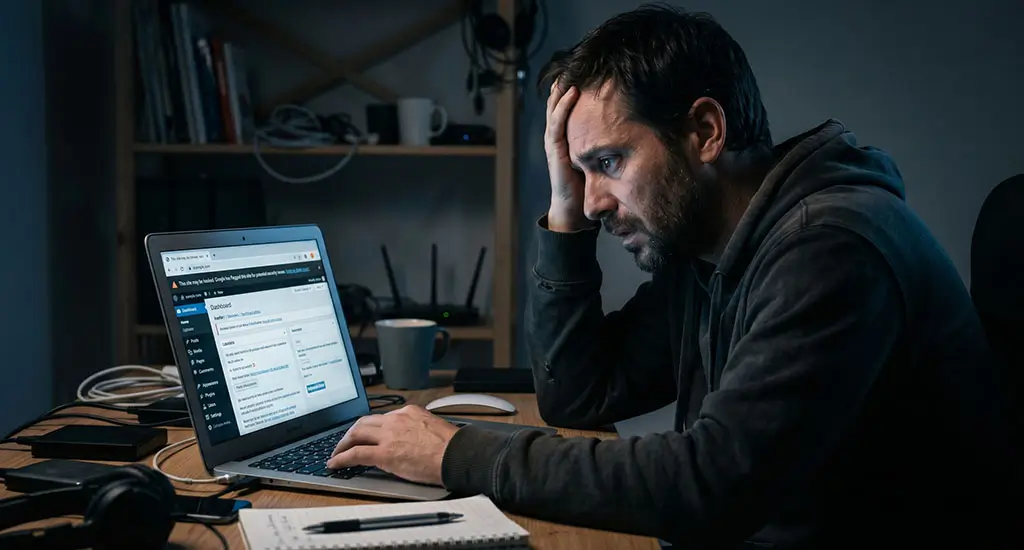
- “This site may be hacked” warning in search results
- Unknown redirects
- Spam content appearing
- Slow website performance
You can also verify your website status using Google Search Console.
Step-by-Step WordPress Malware Removal Guide
Step 1: Backup Your Website
Before starting, create a full backup of your website.
This ensures your data is safe if something goes wrong.
Step 2: Scan Your Website for Malware
Use a trusted security plugin like Wordfence to scan your website.
Look for:
- Suspicious files
- Unknown scripts
- Modified core files
Step 3: Remove Infected Files
- Delete unknown or suspicious files
- Replace core WordPress files with fresh copies
- Reinstall themes and plugins
Step 4: Clean Your Database
Hackers often inject spam links into your database.
- Check wp_posts and wp_options tables
- Remove suspicious entries
- Delete hidden spam links
Step 5: Change All Passwords
Reset passwords for:
- WordPress admin
- Hosting account
- FTP
- Database
Use strong passwords and avoid reuse.
Step 6: Update Everything
Outdated software is the #1 reason for hacks.
- Update WordPress core
- Update plugins
- Remove unused themes
How Malware Impacts SEO
Malware directly affects your rankings:
- Google may blacklist your site
- Rankings drop drastically
- Visitors see security warnings
Learn more about website security best practices from OWASP.
Secure websites rank better and build user trust.
How to Protect Your WordPress Website
1. Install a Security Plugin
Use tools like Sucuri for monitoring and firewall protection.
2. Enable Two-Factor Authentication
Adds an extra layer of login security.
3. Use SSL Certificate
Ensure your website runs on HTTPS.
4. Regular Backups
Schedule automatic backups.
5. Monitor Website Activity
Track login attempts and changes.
Internal Linking Strategy (Important for SEO)
Add these internal links inside your blog:
- Link to your Homepage
- Link to your WordPress Security Services page
- Link to your SEO Optimization services
- Link to your future blogs like:
- “WordPress Security Checklist”
- “Fix Hacked WordPress Site”
Example anchor text:
- “professional WordPress malware removal services”
- “secure your WordPress website”
Why Professional Malware Removal is Recommended
Manual cleanup is risky if done incorrectly.
Professional services help with:
- Deep malware scanning
- Complete cleanup
- Fixing vulnerabilities
- Preventing future attacks
Conclusion
WordPress malware removal is not just about cleaning your website—it’s about protecting your SEO, users, and business reputation.
By following this step-by-step guide, you can remove malware and secure your website effectively.