
Introduction
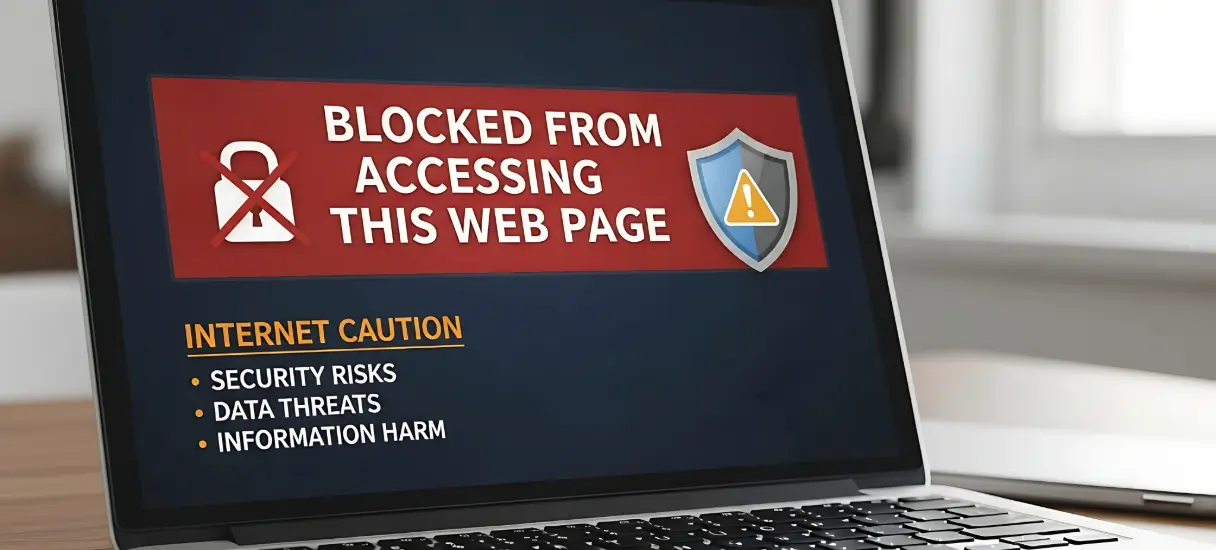
If your site suddenly shows a warning in search results or traffic drops sharply, there is a high chance it has been flagged. Understanding how to clean a blacklisted WordPress website by Google is important because delays can damage your rankings, reputation, and user trust.
A website is usually blacklisted when it contains malware, phishing content, or harmful scripts. Search engines aim to protect users, so they restrict access to such sites. According to the Google Safe Browsing system, unsafe websites may display warnings or be removed from search results.
The good news is that recovery is possible if you follow the correct process.
Why Google Blacklists WordPress Websites
Before you fix the issue, it is important to understand why it happens. In most cases, blacklisting is the result of a security problem rather than a manual penalty.
Common reasons include malware infections, phishing pages, spam injections, and hidden redirects. These issues often come from outdated plugins, weak passwords, or insecure hosting environments.
Learning how to clean a blacklisted WordPress website by Google starts with identifying these root causes.
Signs Your Website Is Blacklisted
There are several warning signs that indicate your website has been flagged.
You may see browser warnings like “This site may be hacked” or “Deceptive site ahead.” Sometimes your website traffic drops suddenly, or your pages disappear from search results.
In some cases, your hosting provider may suspend your account due to detected malware.
If you notice these issues, you should act quickly to prevent further damage.

Step by Step Process to Clean a Blacklisted Website
Cleaning a blacklisted website requires a structured approach. Skipping steps can leave your site vulnerable to future attacks.
Step 1: Backup Your Website
Start by taking a complete backup of your website. This ensures you have a restore point if anything goes wrong during the cleanup process.
Step 2: Scan for Malware
Run a full security scan to detect infected files and malicious code. This will help you understand how deeply your website is affected.
You can scan your website wpwebsupport:
Step 3: Remove Malware and Suspicious Code
Carefully remove all infected files, unknown scripts, and suspicious code. Pay close attention to core files, themes, and plugin directories.
If needed, replace core WordPress files with a fresh version from the official source.
Step 4: Clean the Database
Malware often hides in your database in the form of spam links or injected scripts. Check your database tables and remove any suspicious entries.
This step is essential to fully clean your website.
Step 5: Update Everything
Outdated software is one of the main reasons websites get compromised. Update your WordPress core, plugins, and themes to the latest versions.
Step 6: Change All Passwords
Reset all passwords associated with your website, including admin login, hosting account, database, and FTP credentials.
Strong and unique passwords help prevent reinfection.
Step 7: Request Review from Google
Once your website is clean, you need to request a review so Google can remove the blacklist warning.
Use Google Search Console to submit your site for reconsideration.
Make sure all issues are fixed before submitting the request, otherwise it may get rejected.
How to Prevent Blacklisting in the Future
After cleaning your website, it is important to prevent future issues. Security should be an ongoing process rather than a one-time fix.
Some key practices include:
- keeping WordPress, plugins, and themes updated
- using strong passwords and enabling login protection
- installing a security plugin and firewall
- monitoring your website regularly
- taking automated backups
External Resources for Guidance
You can also follow official security recommendations:
WordPress Security Guide
https://wordpress.org/documentation/article/hardening-wordpress/
Conclusion
Learning how to clean a blacklisted WordPress website by Google is essential for recovering your website’s visibility and trust. Most blacklisting issues are caused by malware or security vulnerabilities, and they can be fixed with the right approach.
Taking preventive steps after cleanup ensures that your website remains safe and does not face the same issue again.
Need Help Fixing Your Blacklisted Website
If you are unsure how to clean a blacklisted WordPress website by Google or want a faster and safer solution, it is better to get expert help.
Contact us here:
We can clean your website, remove blacklisting warnings, and secure your site against future threats.